
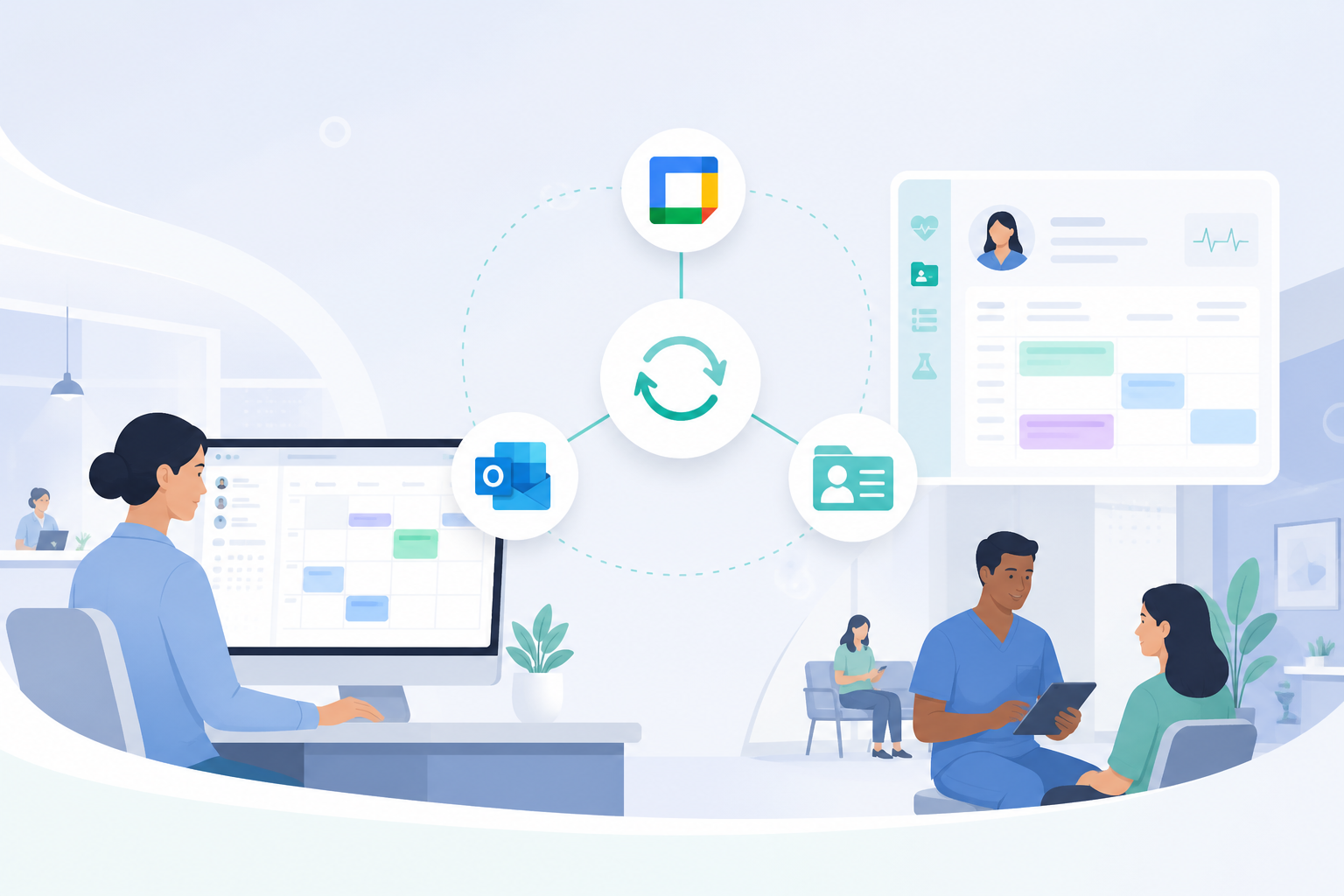
Learn how to sync medical appointments across Google Calendar, Outlook, and EHR systems without duplicate bookings, missed appointments, or scheduling conflicts.
If your clinic feels like it’s managing three different schedules instead of one, you’re not alone. It’s common for providers to manage their availability in Google Calendar, administrative staff to work from Outlook, while appointments are created inside an EHR or practice management system. Add online booking into the mix, and it’s easy to see how scheduling conflicts happen.
Today, we show you the easiest way to make them work together by learning how to sync medical appointments calendars EHR correctly. Your practice can reduce duplicate bookings, improve communication, and give providers a single, accurate view of their schedules.
Why Clinics End Up With Three (or More) Calendars
Most medical practices don’t intentionally create multiple calendars, they evolve that way over time. Different teams adopt different tools because each solves a specific problem.
| System | Typical Use |
|---|---|
| Google Calendar | Providers manage meetings, personal time, vacations, and administrative work. |
| Outlook / Microsoft 365 | Front-desk staff coordinate providers, meetings, and clinic operations. |
| EHR / EMR | Clinical appointments and patient schedules. |
| Online Booking Platform | Patients book appointments online based on provider availability. |
Individually, each system works well. The challenge begins when they aren’t synchronized. For example:
- A doctor blocks an afternoon in Google Calendar.
- Reception books patients inside the EHR.
- Another staff member schedules a meeting in Outlook.
- A patient books online through your website.
Without multi calendar sync healthcare workflows, each system has a different version of the provider’s availability. That’s when duplicate appointments, missed bookings, and scheduling conflicts begin to appear.
Related reading: calendar integration for medical scheduling, best calendar integration tools for medical practices, and online appointment booking for medical practices.
The Two Solutions for Multi-Calendar Sync
There are two common ways to synchronize calendars across a medical practice. Understanding the difference helps you choose the right architecture for your clinic.
Hub-and-Spoke (Recommended)
Google Calendar
│
Outlook ——— Schedule.so ——— EHR
│
Online Booking
One platform, like Schedule.so, acts as the scheduling hub while every connected system stays synchronized automatically.
Benefits include:
- Easier troubleshooting
- Fewer synchronization conflicts
- One source of truth
- Simpler administration
- Better scalability
This is how most modern healthcare organizations keep themselves synced.
Mesh Synchronization
Google ↔ Outlook
Google ↔ EHR
Outlook ↔ EHR
Booking ↔ Google
Booking ↔ Outlook
Booking ↔ EHR
Every system attempts to communicate directly with every other system. While possible, this creates more opportunities for:
- Duplicate appointments
- Sync delays
- Conflicting updates
- Difficult troubleshooting
For most practices, the hub-and-spoke model is easier to manage and significantly more reliable.
Which model should you choose?
Most healthcare teams get the best results with hub-and-spoke: one platform holds the source of truth, and every other calendar mirrors it automatically. Mesh setups work, but they multiply the places a sync can fail.
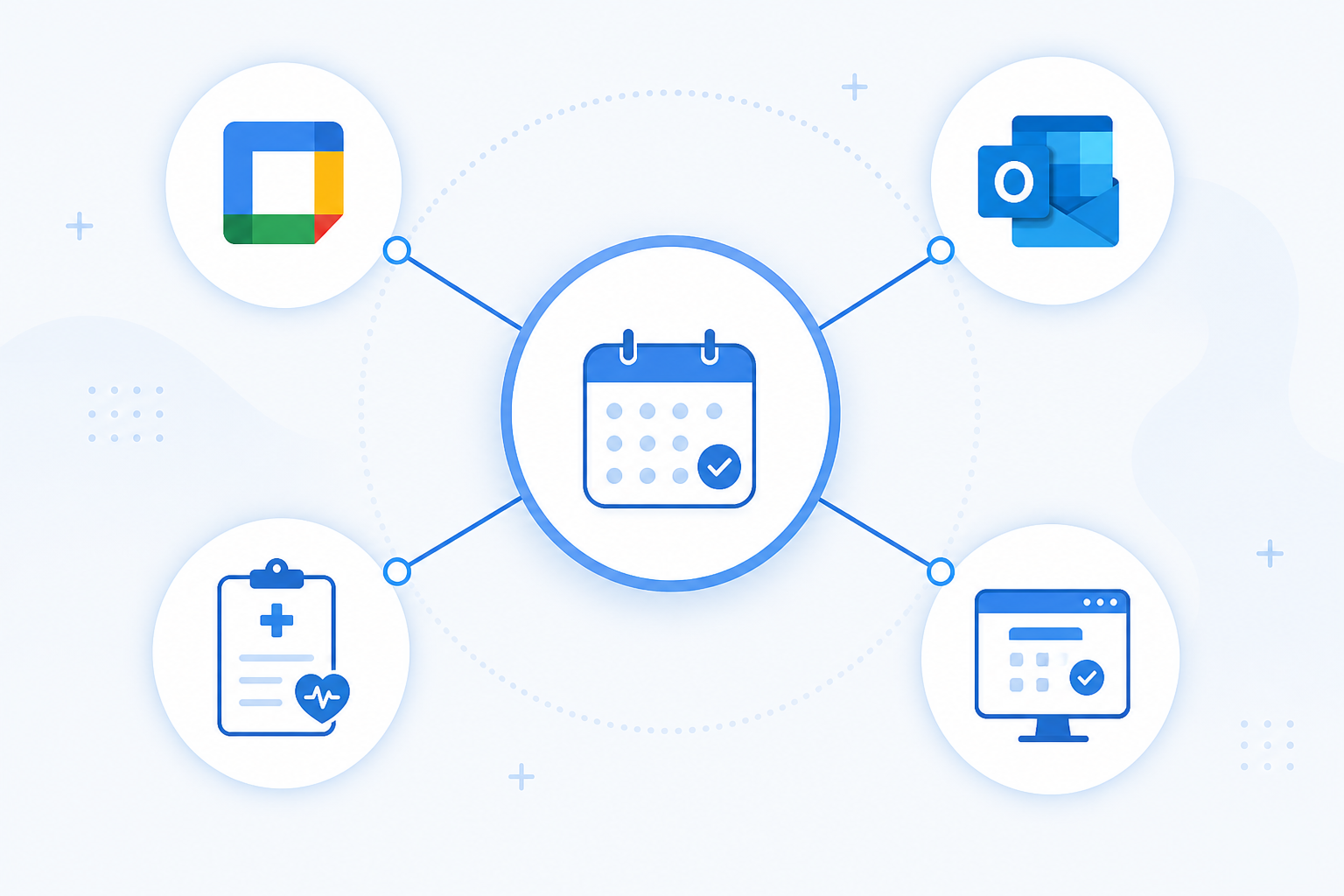
Audit Where Appointments Live
Identify every calendar and system where appointments can be created or changed.
Pick Your Source of Truth
Choose one authoritative system so availability isn't controlled from multiple places.
Connect Google Calendar
Link each provider's calendar so blocked time updates booking availability instantly.
Connect Outlook / Microsoft 365
Set working hours, free/busy, and Teams meeting settings for every provider.
Connect the EHR or EMR
Keep the clinical appointment record synchronized through native integrations or APIs.
Define Conflict-Resolution Rules
Decide which system wins when two calendars disagree, before you go live.
Step 1: Audit Where Appointments Actually Live
Before connecting anything, identify every place appointments can currently be created or modified. Ask yourself:
| System | Question |
|---|---|
| Google Calendar | Do providers manage their own schedules here? |
| Outlook | Does the front desk coordinate appointments or meetings here? |
| EHR/EMR | Are clinical appointments created here? |
| Online Booking | Which calendar does your booking page check before confirming appointments? |
| Personal Calendars | Are providers blocking vacations or meetings elsewhere? |
Once you’ve identified every booking source, label each one as either:
| Type | Purpose |
|---|---|
| Authoritative | Determines provider availability. |
| Mirror | Displays appointments but doesn't control availability. |
This simple exercise usually reveals why duplicate appointments happen.
Step 2: Pick Your Source of Truth
One of the biggest mistakes clinics make is allowing multiple systems to control provider availability. If appointments can be created independently in Google Calendar, Outlook, your EHR, and your booking software, scheduling conflicts become almost inevitable.
Instead, choose one system to act as your source of truth while every other calendar mirrors its availability.
In most practices, the EHR is the source of truth
If your EHR or EMR is where staff create and manage patient appointments, it usually makes sense for it to remain your primary scheduling system. This creates a reliable EHR calendar integration without forcing staff to change how they work.
When your booking platform becomes the source of truth
Some private practices, allied health clinics, and telehealth providers manage most appointments through online booking rather than directly in the EHR. In these cases, your scheduling platform can become the central scheduling hub while synchronizing appointments with connected calendars and your practice management software.
Platforms like Schedule.so are designed for this workflow, allowing patients to self-book while automatically updating connected calendars and reducing duplicate data entry.
Step 3: Connect Google Calendar Correctly
Many providers already use a physician Google Calendar to manage meetings, vacations, conferences, and administrative time. Connecting these calendars ensures patients can’t book appointments during periods when providers are unavailable.
When connecting Google Calendar:
- Connect each provider’s calendar individually.
- Keep personal and work calendars organized.
- Review calendar permissions before sharing availability.
- Test that blocked time immediately updates your booking availability.
With Schedule.so, providers can securely connect their Google Calendar during setup. Once connected, appointments booked online appear automatically in Google Calendar, while blocked time created in Google Calendar prevents those appointment slots from being offered online.
This creates a dependable EMR Google Calendar sync without requiring staff to manually update multiple systems.
Step 4: Connect Outlook / Microsoft 365 Correctly
Many clinics use Microsoft 365 to manage daily operations, making Outlook clinic scheduling an important part of the overall scheduling workflow.
When configuring Outlook:
- Connect each provider’s Outlook calendar individually.
- Configure working hours.
- Review free/busy permissions.
- Check Microsoft Teams meeting settings if virtual appointments are offered.
If your clinic uses both Outlook and Google Calendar, avoid manually copying appointments between systems. Instead, use a scheduling platform that can sync Google and Outlook calendars automatically while maintaining one accurate view of provider availability.
Schedule.so supports Outlook alongside Google Calendar, allowing practices to manage providers across both platforms without creating conflicting schedules.
Step 5: Connect the EHR or EMR
Connecting your calendars is only one piece of the puzzle. Your EHR still contains the clinical appointment record, making it one of the most important systems in your scheduling workflow.
Depending on your software, EHR appointment integration may be available through:
- Native integrations
- APIs
- Middleware platforms
- Calendar synchronization
Many clinics use systems such as:
- OSCAR
- Jane App
- Accuro
- Athenahealth
Rather than replacing these systems, your scheduling platform should complement them by keeping provider availability synchronized across every connected calendar.
Step 6: Define Conflict Resolution Rules
Even with connected systems, conflicts can still happen if two calendars attempt to update the same appointment at the same time. Before going live, decide how conflicts should be handled.
Questions to answer:
- Which system has priority if appointments overlap?
- Which system handles cancellations?
- Which system updates rescheduled appointments?
- How should provider time off be managed?
- Is there an audit trail for scheduling changes?
By defining these rules in advance, your team always knows which schedule to trust.
Schedule.so automatically checks connected calendars before confirming appointments, helping prevent conflicts before they happen rather than requiring staff to resolve them afterward.
Common Sync Failures and How to Recover
Even well-designed systems occasionally encounter synchronization issues. Here are some of the most common problems clinics face.
| Problem | Likely Cause | How to Fix It |
|---|---|---|
| Duplicate appointments | Multiple scheduling systems acting as the source of truth | Choose one authoritative scheduling system and connect all calendars. |
| Ghost appointment slots | Availability wasn't updated after a cancellation or calendar disconnect | Verify calendar connections and refresh synchronization. |
| Lost reschedules | Changes weren't synchronized across connected systems | Test rescheduling workflows and reconnect affected calendars if needed. |
| Time zone drift | Different systems using different time zone settings | Ensure you are using a calendar software like Schedule.so that allows for multiple time zones, and syncs timings across calendars automatically. |
| The same provider keeps getting booked | Availability or assignment rules are incorrect | Review each provider's booking limits, and enable assignment settings like round-robin or fixed provider to ensure appointments are distributed |
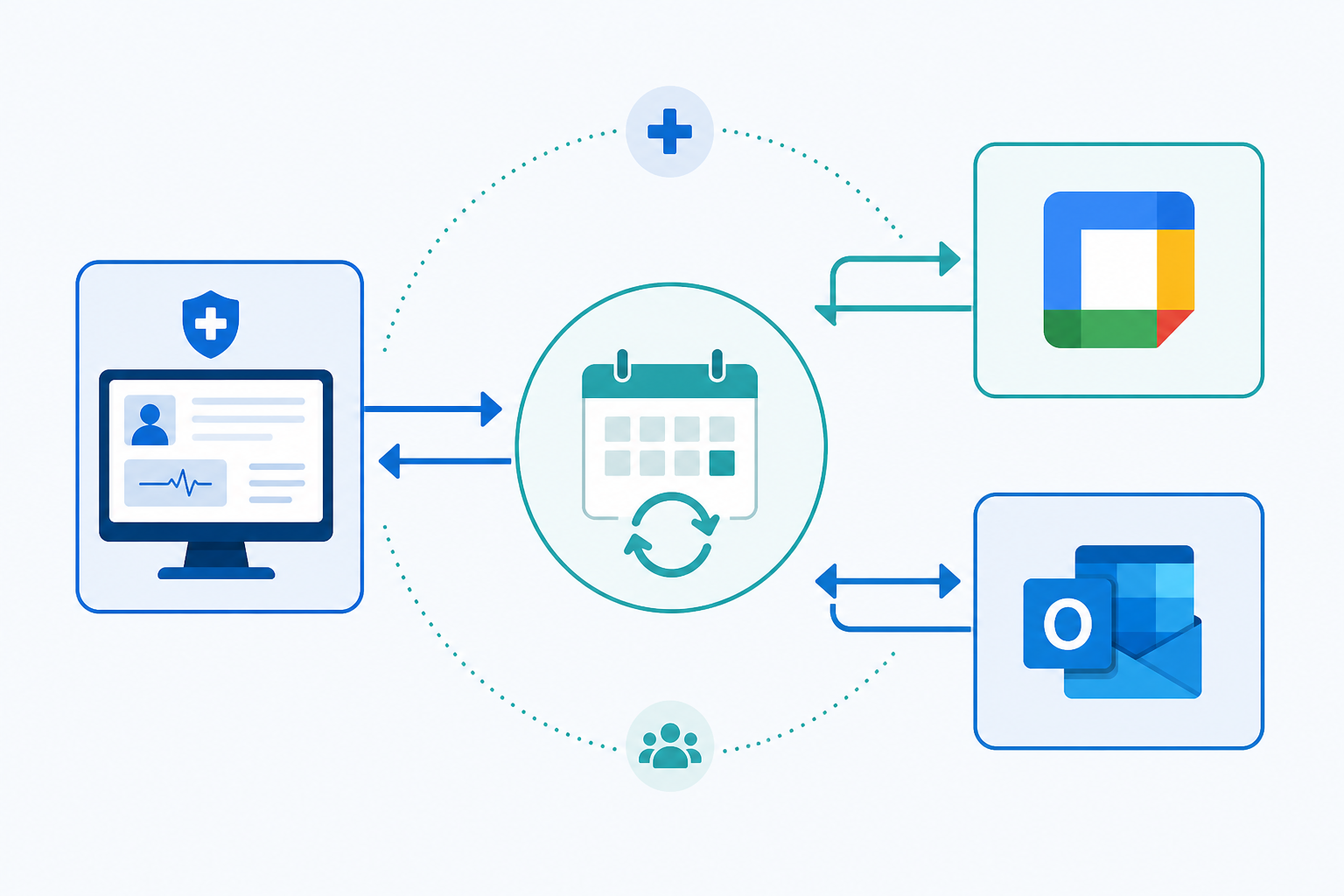
How Schedule.so Sits Across Google Calendar, Outlook, and Your EHR
Most clinics don’t need another calendar, they need a way to keep their existing systems synchronized.
Schedule.so acts as the scheduling layer between your booking page and the calendars your team already uses. Instead of replacing Google Calendar, Outlook, or your EHR, it keeps provider availability synchronized across them, reducing manual work and helping prevent scheduling conflicts.
With Schedule.so, you can:
One scheduling layer, every calendar in sync
Connect Your Calendars
Connect Google Calendar, Outlook, Apple Calendar, or use the built-in Schedule.so calendar.
Provider-Specific Availability
Create provider-specific availability with working hours, split shifts, holidays, and vacation overrides.
Flexible Booking Rules
Configure booking rules such as buffer times, booking limits, and minimum booking notice.
Multiple Meeting Types
Offer multiple meeting types, including Google Meet, Microsoft Teams, Zoom, phone calls, and in-person appointments.
Automatic Assignment
Automatically assign appointments using fixed providers, team scheduling, or round-robin distribution.
No-Show Reduction
Reduce no-shows with automated confirmation emails and reminders.
Compliance Ready
Meet healthcare compliance requirements with support for HIPAA, GDPR, SOC 2, ISO 27001, PIPEDA, and PHIPA.
Rather than forcing your team to switch between multiple scheduling systems, Schedule.so provides one place to manage availability while keeping your existing calendars and scheduling workflows connected.
Best Practices for Long-Term Calendar Sync
Once your scheduling system is live, a few simple habits can help keep everything running smoothly.
Connect Every Provider's Calendar
An unconnected calendar is one of the most common causes of duplicate appointments.
Review Availability Regularly
Provider schedules change throughout the year, so keep hours and time off current.
Standardize Your Scheduling Rules
Consistent buffer times and booking limits make scheduling easier for staff and patients.
Test Calendar Sync After Major Changes
A five-minute test after any change can prevent hours of troubleshooting later.
Connect Every Provider's Calendar
If a provider uses Google Calendar or Outlook to block meetings, vacations, or administrative time, make sure those calendars are connected to your scheduling platform. An unconnected calendar is one of the most common causes of duplicate appointments.
Review Availability Regularly
Provider schedules change throughout the year.
Review:
- Working hours
- Vacation dates
- Conference schedules
- Holiday closures
- Appointment durations
Keeping availability up to date ensures patients only see appointment times that can actually be booked.
Standardize Your Scheduling Rules
Every provider should follow consistent scheduling policies where possible.
Examples include:
- Buffer times
- Minimum booking notice
- Daily appointment limits
- Cancellation windows
- Appointment durations
Consistent rules make scheduling easier for both staff and patients.
Test Calendar Sync After Major Changes
Whenever you:
- Add a new provider
- Connect another calendar
- Change your scheduling software
- Update your EHR
- Add another clinic location
perform a few test bookings to verify everything is still synchronizing correctly. A five-minute test can prevent hours of troubleshooting later.
Frequently Asked Questions
Can Google Calendar sync with Outlook?
Not directly in every scenario. Most clinics use a scheduling platform that connects both Google Calendar and Outlook, allowing provider availability to stay synchronized without manually copying appointments between calendars.
Does my EHR sync with Google Calendar?
Some EHRs offer native integrations, while others require APIs or third-party scheduling platforms. The available options depend on your EHR vendor and how you want appointment information to flow.
What is a calendar sync bridge?
A calendar sync bridge is software that keeps multiple calendars synchronized by automatically updating availability and appointments between connected systems. Scheduling platforms like Schedule.so act as this bridge, helping ensure providers aren’t booked into conflicting appointment slots.
Can I have one calendar for my whole clinic?
You can, but most practices benefit from maintaining separate calendars for each provider while using a shared scheduling platform to present a unified booking experience. This provides better visibility while allowing each provider to manage their own availability.
How do I avoid duplicate appointments across systems?
The best approach is to:
- Choose one source of truth.
- Connect every provider calendar.
- Synchronize Google Calendar, Outlook, and your EHR.
- Configure booking rules and availability.
- Test every booking workflow before going live.
This creates a reliable unified clinic calendar while reducing manual scheduling work.
Sync Everything in One Place With Schedule.so
Managing appointments across Google Calendar, Outlook, and an EHR doesn’t have to be complicated. The key is understanding where appointments originate, choosing a single source of truth, and ensuring every connected system stays synchronized.
By following the best practices in this guide, your practice can improve medical office calendar sync, reduce scheduling conflicts, and create a more efficient experience for providers, staff, and patients.
If you’re ready to sync medical appointments calendars EHR without duplicate bookings or disconnected systems, Schedule.so makes it easy. Connect your existing calendars, configure provider availability, and manage online booking from one centralized platform.
Sync everything in one place with Schedule.so
Connect Google Calendar, Outlook, and your EHR to one scheduling layer that keeps every appointment accurate - try it free.