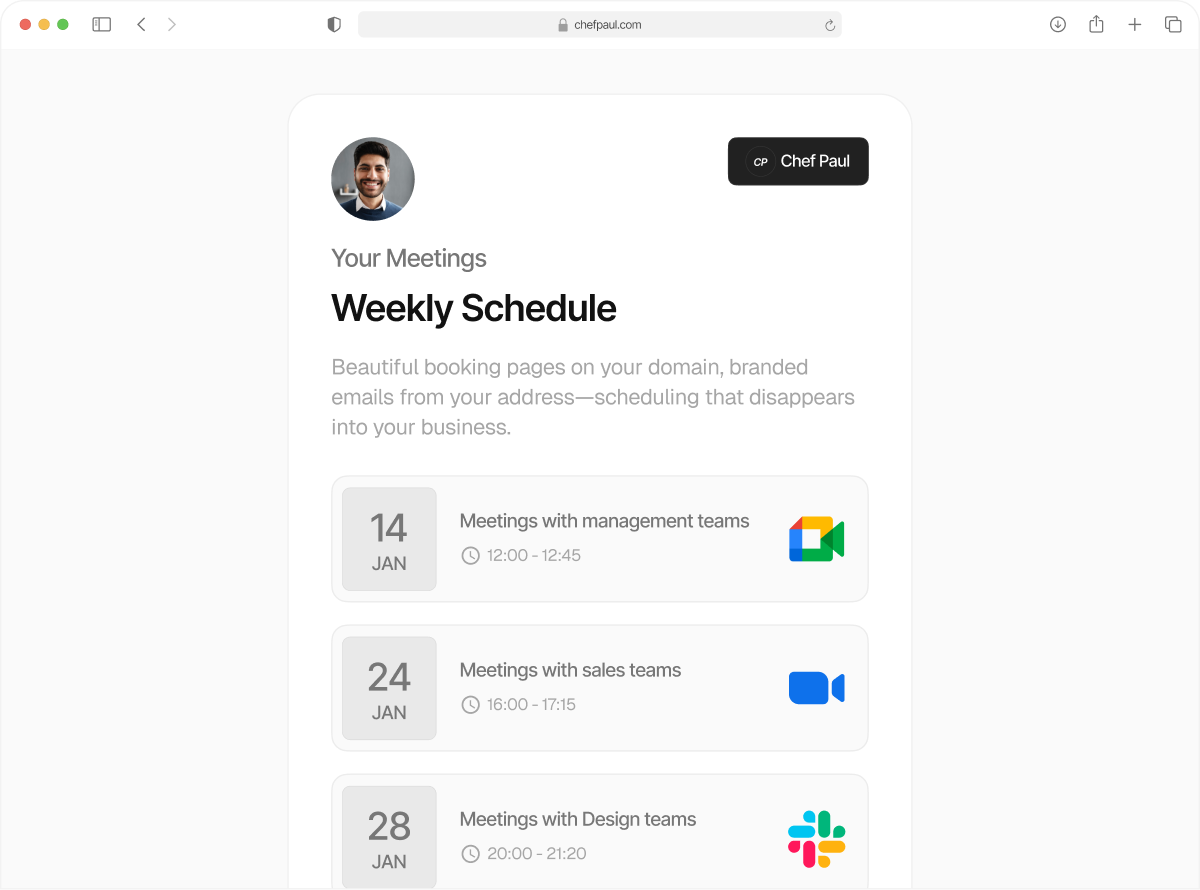
How to connect Google Meet
Managing multiple meeting links manually can be frustrating and time-consuming. When Google Meet is connected, Schedule automatically creates and attaches a meeting link to your event once a booking is confirmed.
This gives you a simpler booking workflow and makes sure both you and your attendee receive the meeting link without any extra steps.
Setting Up Google Calendar Integration
To get started, open the Meeting Location section in Schedule. Find Google Meet in the list of available meeting tools, then click Connect.

Log in using the Google account you want to use for your meetings. After signing in, you will be asked to grant permissions. These permissions allow Schedule to create and manage Google Meet links for your bookings. Review the access and click Allow to continue. Once the permissions are granted, the window will close automatically and you will be redirected back.
Google Meet will now be successfully connected, and it will be available as a meeting location while creating events.

Default Meeting Location
Once Google Meet is connected, select it and set it as the default location. After this, it will be automatically selected whenever you create a new event. This ensures every event includes a Google Meet link without needing to select it manually.
If you have multiple meeting locations, all of them will appear in a dropdown while creating an event, allowing you to select a different location if needed.

Testing the Booking Flow
When a user books a meeting, a Google Meet link is generated automatically. The link is included in the booking confirmation, so both you and the participant can join the meeting easily.